
Homerow
Homerow offers a series of keyboard shortcuts for macOS, available for macOS 12.3 and later, enabling users to click without resorting to the mouse.
Information
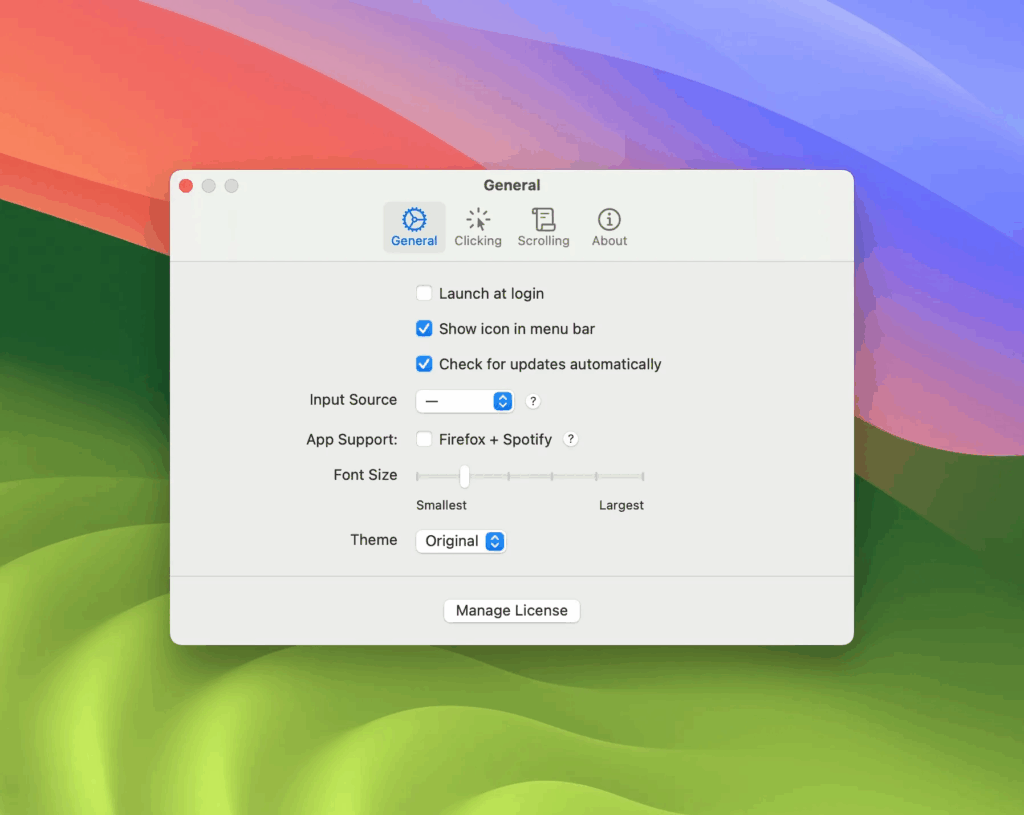
Description
Homerow offers a series of keyboard shortcuts for macOS, available for macOS 12.3 and later, enabling users to click without resorting to the mouse: simply press a specific shortcut and enter the label of an interface element, such as the name of a button, to perform the click.
Homerow also supports scrolling with the keyboard in any app, by pressing the corresponding shortcut key and using the up and down arrow keys to scroll faster. If you need to switch to another scrolling area, you can press a specific shortcut or enter a marked number.
Homerow also offers a search and click feature, where users can type what they want to click after pressing a shortcut, use the arrow keys to switch focus to another interface element, or enter element labels while holding down a specific shortcut. Press Enter to click on the element in which it is currently in focus.
For some less obvious interface elements, Homerow provides a Tutor feature that helps users reveal searchable properties of focus elements by pressing shortcuts, simplifying the operation process.
Function
Keyboard shortcuts for each button in macOS
Available for macOS 12.3 and above
Click anywhere without a mouse
- Press
⌘ + F2and enter a label for a UI element (e.g. OK) to perform a click action.
Scroll through any app
- Press
⌘ + F2and use↓With↑Start scrolling. - Hold
⇧Can scroll faster. - By pressing
⇥Or the label labeled with a number switches to another scrolling area.
Search and tap
- Press
⌘ + F3And enter what you want to click. - Use the arrow keys to move focus to another UI element. Or, hold down
⌘Enter the label of an element at the same time. - Press
⌘ + ⏎to click on the focus element.
The Tutor 🤓
- For some UI elements, the content of their search queries is not immediately apparent. Press
⌘ + ⌥to reveal the searchable properties of the focal element.
Download
No comments yet. Be the first to share your thoughts!
Comments & Reviews