
macOS 27 Golden Gate
Information
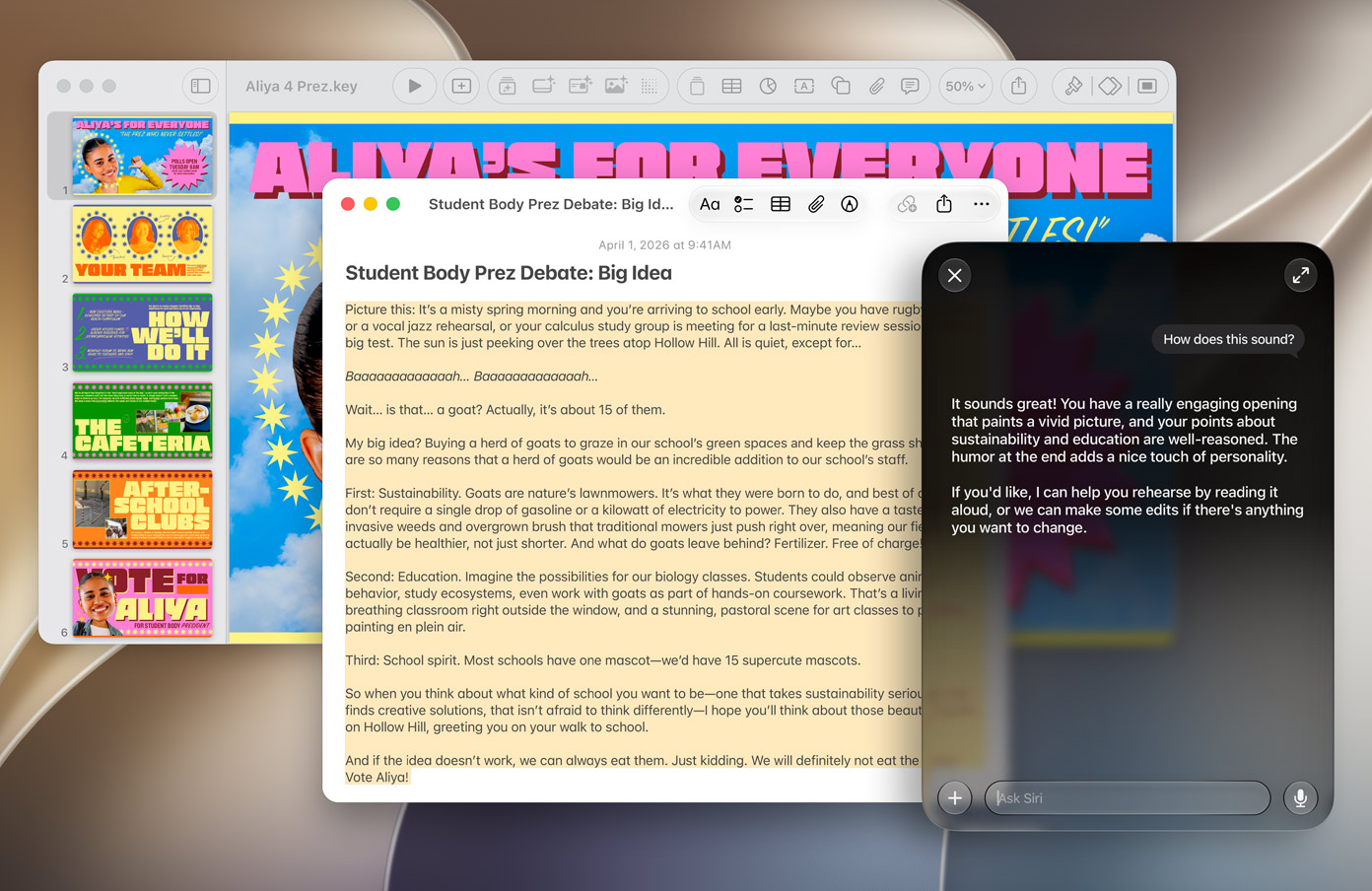
Description
macOS 27 Golden Gate is the twenty-second and current major release of Apple’s macOS operating system.
The successor to macOS Sequoia (macOS 15), it was first announced at WWDC 2026 on June 9, 2026, with its first developer beta released the same day.
Golden Gate is the last version of macOS to support Macs with Intel processors, with support further-limited to selected iMac, MacBook Pro, and Mac Pro models; all future versions will support only Apple silicon.
How to crack app startup crashes or invalid solutions after the official release of macOS 27 Golden Gate
The official version of macOS 27 Golden Gate has been released. Some users may encounter issues after upgrading their systems, such as the cracked app failing to start, crashing immediately after startup, configuration reading failure, or feature invalidation.
Currently, there are two main common causes, and it is recommended to check them in order.
1. Still using the old version from before the fix
If your Mac is not an upgrade from macOS 27 Beta, the app you are currently using may still be an older version before the official system release.
In the early days of macOS 27 Beta, some apps experienced startup failures or compatibility issues. These issues have been gradually fixed since the beta release, and usable versions have been re-uploaded.
Handling methods
- Search for and open the article page of the corresponding software.
- Check the last update time of the article.
- If the article is there There was an update after early June, please re-download the updated version.
- Delete or remove the old version you are currently using, then try running the new version.
If you are using an earlier downloaded version, it is recommended to first download the latest version before testing.
2. Privacy restrictions in macOS 27 prevent apps from accessing data
macOS 27 further strengthens TCC privacy permission verification.
Some application data may be stored in the following protected directories:
~/Library/Containers/~/Library/Group Containers/
Since modified or cracked versions usually require re-signing, if the application’s signature identity changes, the system may refuse to read the original configuration files and application data, resulting in:
- The app crashes immediately after launching
- The app cannot read the original configuration
- After the app launches, it will show blank or restore default settings
- Some functions are not functioning properly
How to confirm whether it is a permission issue
You can view real-time system logs using the macOS built-in “Console” app.
- Open Console .app (Console.app) 。
- Enable real-time log viewing.
- Search the following keywords in the search box:
kTCCServiceSystemPolicyAppDataDetailedIf you can’t find the relevant results, you can also search:kTCCServiceSystemPolicyAppData
If there are denial records in the logs related to the target application reading protected directories, it usually indicates that the application is subject to TCC privacy restrictions.
Important reminder:
Before enabling “Full Disk Access,” make sure you trust this app. This permission expands the app’s access to local files and data.
The original cracked versions released on this site will never contain malicious behavior. However, if the app comes from other websites, cloud drives, or unknown sources, please proceed with caution. It is recommended to first confirm the download source and file integrity, and only grant permissions after confirming they are secure. Do not authorize just because the app cannot start.
Solution
- Open System settings 。
- Enter Privacy and security 。
- Open Full disk access permission 。
- Add problematic apps to the permission list.
- After completely exiting the app, restart it.
If the app is already listed as “Full Disk Access” but still cannot start, you can reauthorize it as follows:
- Remove the app from the permission list.
- Re-add the app to the list.
- Exit completely and reopen the app.
If necessary, you can restart your Mac and test again.
Recommended inspection sequence
When encountering app startup crashes or invalid issues, it is recommended to follow these steps:
- Confirm whether the current version is the latest version after the article was updated.
- Re-download and replace the old version.
- View the TCC permission log in the Control Panel .app.
- Enable “Full Disk Access Permission” for the corresponding application.
- If the app is already in the permission list, remove it first and then re-add it.
- Restart the app, and restart your Mac if necessary.
What if it still can’t be resolved?
If both of the above situations have been resolved but the app still cannot launch or functions malfunction, please leave a comment to provide feedback.
Notes:
Expect issues with previous cracks.
Download
No comments yet. Be the first to share your thoughts!
Comments & Reviews