
Fix Apps Not Opening
Information
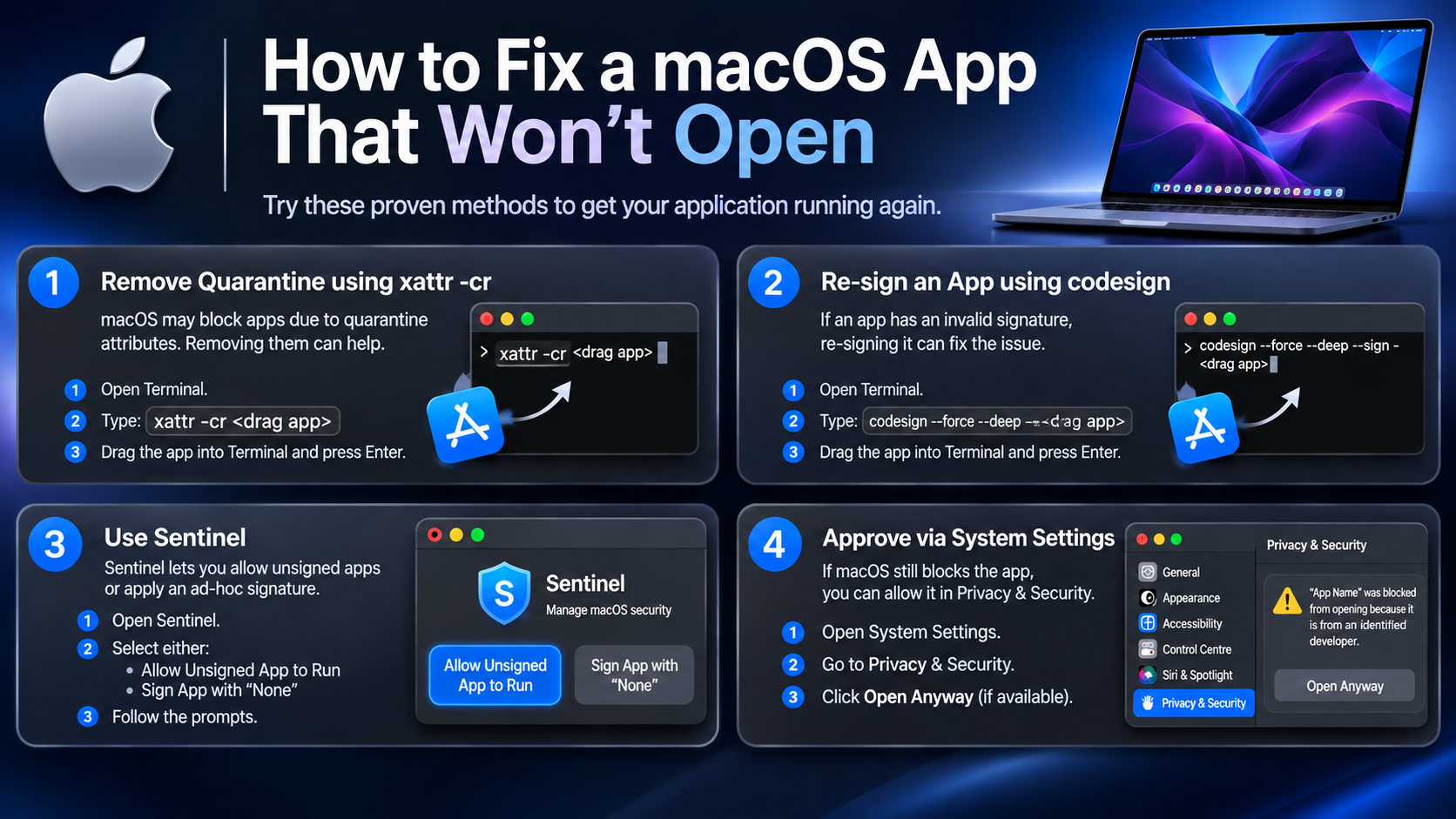
Description
Below are several methods you can try if a macOS application refuses to open.
Method 1: Remove Quarantine Attributes Using Terminal
macOS automatically attaches quarantine attributes to applications downloaded from the internet. These attributes allow Gatekeeper to check applications before they are opened.
If an application is incorrectly flagged or blocked, removing its quarantine attributes may resolve the issue.
Instructions:
- Open Terminal.
- Type the following command, leaving a space at the end:
xattr -cr - Drag the affected application from Finder directly into the Terminal window.
- Press Enter.
- Try opening the application again.
Alternatively, you can use the full command:
/usr/bin/xattr -cr What this does: Removes extended attributes recursively from the selected application, including its quarantine attribute.
Method 2: Re-sign the Application
Some applications have invalid, damaged or incompatible code signatures. Re-signing the application locally can sometimes resolve signature-related issues.
Instructions:
- Open Terminal.
- Enter the following command:
codesign --force --deep --sign - - Drag the affected application into Terminal after the command.
- Press Enter.
- Wait for the command to finish.
- Try launching the application again.
What this does: Applies an ad-hoc code signature to the application and its nested code.
Important: This does not give the application a trusted developer identity or make it notarised by Apple. Re-signing can also invalidate existing signatures and may affect applications that rely on signed components.
Method 3: Use Sentinel
If Terminal commands haven’t resolved the issue, Sentinel provides another way to manage macOS application security restrictions.
Sentinel can help with allowing unsigned applications to run and applying ad-hoc signatures.
Instructions:
- Open Sentinel.
- Locate the application that macOS is preventing you from opening.
- Depending on the available options, choose one of the following:
- Allow Unsigned App to Run: Allows an unsigned application to run without requiring a trusted developer signature.
- Sign App with ‘None’: Applies an ad-hoc signature to the application.
- Follow Sentinel’s prompts.
- Once completed, try opening the application again.
The exact options may vary depending on your Sentinel version.
Method 4: Check macOS Gatekeeper Settings
If the application is still blocked, check whether macOS is displaying an option to allow it.
- Open System Settings.
- Navigate to Privacy & Security.
- Scroll down to the Security section.
- If macOS has blocked the application, look for an Open Anyway option.
- Review the warning and confirm only if you trust the application and its source.
Notes:
If you are stuck on which method to try first, I'd recommend trying method 1 and 2, if they don't work try sentinel with gatekeeper off, try both options in sentinel.
Download link is sentinel or you can go here for more information on sentinel.
This guide should help users who may be having problems with apps like LookAway. Also for users when the popup says this app can't be opened with a finder icon.
Download
No comments yet. Be the first to share your thoughts!
Comments & Reviews